Microsoft Azure Integration
Cloud ex Machina (CXM) connects to your Azure tenant to provide FinOps analysis, cost optimization recommendations, and infrastructure insights.
Architecture
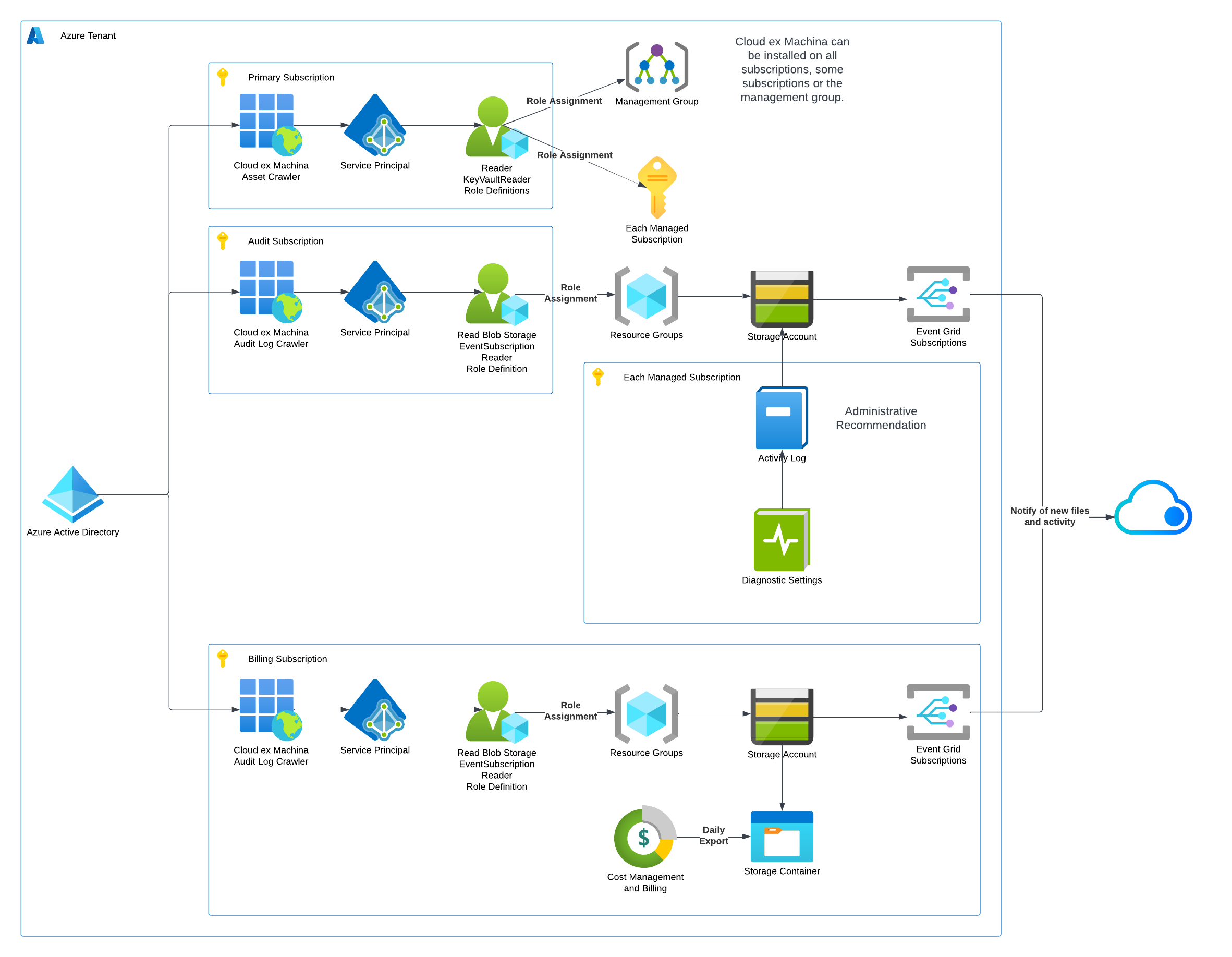
CXM uses a Service Principal with read-only access to collect data from three areas:
| Component | Purpose | Data Collected |
|---|---|---|
| Asset Discovery | Infrastructure inventory | All Azure resources across subscriptions |
| Billing Export | Cost analysis | Cost Management export files (CSV/Parquet) |
| Activity Logs | Change tracking | Administrative operations and audit trail |
Key Concepts
Service Principal
CXM authenticates using an Azure AD Application with an associated Service Principal. This identity is granted read-only roles to access your resources.
Scope Options
You can grant CXM access at different levels:
- Single Subscription: Access to one specific subscription
- Multiple Subscriptions: Access to a list of subscriptions
- All Subscriptions: Access to all subscriptions in the tenant (with optional exclusions)
- Management Group: Access at management group level (inherits to all child subscriptions)
Storage Accounts
CXM reads cost and activity data from storage accounts where Azure exports this information:
- Billing Exports: Storage account containing Cost Management exports
- Activity Logs: Storage account receiving diagnostic settings logs
These storage accounts typically already exist in your environment. CXM only needs read access to them.
Prerequisites
Before starting the setup, ensure you have:
Azure Permissions
- Azure AD: Permission to create App Registrations (or Global Administrator for Directory Reader role)
- Subscriptions: Owner or User Access Administrator on target subscriptions
- Storage Accounts: Reader access to billing and activity log storage accounts
Existing Resources
Identify the following in your environment:
| Resource | How to Find |
|---|---|
| Billing Export Storage Account | Azure Portal > Cost Management > Exports |
| Activity Log Storage Account | Azure Portal > Monitor > Activity Log > Diagnostic Settings |
If these don't exist yet, you'll need to create them as part of the setup.
Setup Methods
Choose the method that best fits your workflow:
| Method | Best For | Time |
|---|---|---|
| Terraform | Infrastructure-as-code teams, repeatable deployments | 10-15 min |
| Azure Portal | Quick setup, no Terraform experience required | 20-30 min |
Both methods create the same resources and provide the same level of access to CXM.
Permissions Granted
CXM requests minimal, read-only permissions:
Asset Discovery Roles
| Role | Scope | Purpose |
|---|---|---|
| Reader | Subscriptions or Management Group | Read all Azure resources |
| Monitoring Reader | Subscriptions or Management Group | Read metrics and diagnostics |
| Key Vault Reader | Subscriptions or Management Group | Read vault metadata (not secrets) |
Storage Access (Custom Role)
| Permission | Purpose |
|---|---|
Microsoft.Storage/storageAccounts/read | Read storage account properties |
Microsoft.Storage/storageAccounts/blobServices/containers/read | List containers |
Microsoft.Storage/storageAccounts/blobServices/containers/blobs/read | Read export files |
Microsoft.CostManagement/exports/read | Read export configurations |
Microsoft.Insights/diagnosticSettings/read | Read diagnostic settings |
Optional: Directory Reader
If enabled, allows CXM to read Azure AD users and groups for cost attribution. Requires Azure AD admin privileges to assign.
Security Considerations
- Read-Only Access: CXM cannot create, modify, or delete any resources
- No Data Plane Access: CXM cannot read actual data in databases, storage blobs (except export containers), or other services
- Scoped Access: You control exactly which subscriptions CXM can access
- Audit Trail: All CXM access is logged in Azure Activity Logs
Next Steps
Choose your setup method:
- Terraform Setup - Recommended when source code manages your infrastructure
- Manual Setup - Step-by-step Azure Portal guide